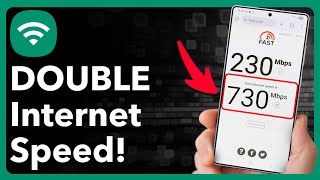
How To Improve Network Speed In Mobile Devices
Slow data speeds can be frustrating, whether you’re streaming video, joining a video call, or simply browsing the web on your phone. Fortunately, there are several practical steps you can take to boost your mobile network performance without spending a fortune. This guide walks you through the most effective methods, from tweaking settings to optimizing your environment, so you can enjoy faster, more reliable connectivity.
Check Your Mobile Settings First
Before looking for external solutions, make sure your device is configured for optimal performance.
Enable LTE or 5G
Most modern smartphones support LTE and, increasingly, 5G. Go to Settings → Mobile Network and ensure the highest available network mode (e.g., “5G/4G/3G Auto”) is selected. If your carrier offers a dedicated 5G plan, switching to it can provide a noticeable speed increase.
Turn Off Low Data Mode
Low Data Mode conserves bandwidth by limiting background activity, but it also slows down active connections. Navigate to Settings → Cellular → Data Options and toggle off any data‑saving features when you need maximum speed.
Optimize Data Usage on Your Device
Excessive background traffic can choke your connection. Here are two quick ways to reduce it.
Restrict Background App Refresh
Open Settings → General → Background App Refresh and disable the feature for apps that don’t need constant updates. This frees up bandwidth for the tasks you’re actively using.
Clear Cache Regularly
Cached files can accumulate and slow down browsing. For Android, go to Settings → Storage → Cached data and clear it. iPhone users can clear Safari cache via Settings → Safari → Clear History and Website Data.
Update Software and Apps
Outdated operating systems and apps often contain bugs that affect network performance. Keeping your phone and its apps up to date ensures you benefit from the latest performance optimizations and security patches.
- Check for OS updates regularly (Settings → Software Update).
- Enable automatic app updates in the App Store or Google Play.
- Reinstall apps that consistently lag or crash.
Leverage Wi‑Fi Assist and Smart Network Switching
Many phones include a feature that automatically switches between cellular data and Wi‑Fi when one becomes slower. On iPhone, this