How to Make Uppercase in Excel: A Step‑by‑Step Guide
Whether you’re cleaning up a data set or preparing a report, converting text to uppercase in Excel is a common task. In this tutorial we’ll show you two easy methods to change text case, so you can choose the approach that best fits your workflow.
Why Convert Text to Uppercase?
Standardizing text in uppercase can improve readability, simplify sorting, and ensure consistency across large spreadsheets. It’s especially useful when you need to match data from different sources, such as merging lists of product codes or preparing mailing labels.
Method 1: Using the UPPER Function
The UPPER function is built into Excel and works instantly on any cell range. Follow these steps:
- Identify the column that contains the text you want to convert.
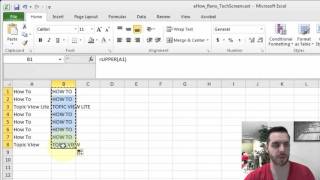
- In an empty column, type the formula =UPPER(cell_reference). For example, =UPPER(A2).
- Press Enter. The result will display the same text in uppercase.
- Copy the formula down the column by dragging the fill handle (the small square at the bottom‑right of the cell).
- When you’re satisfied, replace the original data: select the new column, copy it, then use Paste Special → Values over the original cells.
This method is ideal for quick, one‑off conversions and works in any version of Excel.
Method 2: Using Flash Fill (Excel 2013+)
Flash Fill automatically detects patterns as you type, making it a powerful alternative to formulas. It’s perfect when you want to convert a column without writing a single function.
- In the column next to your data, type the uppercase version of the first entry manually.
- Press Enter and start typing the second entry. Excel will suggest the rest of the column.
- Press Ctrl + E (or select Data → Flash Fill) to accept the suggestions.
- Once the data is filled, copy the new column and Paste Special → Values over the original column if you need to replace it.
Flash Fill works best when the pattern is clear and consistent, such as converting a list of names or product titles.
Bonus Tip: Converting Mixed Text Quickly
If you have a “hot mess” of mixed case text—some letters capitalized, others not—you can combine the UPPER function with TRIM to clean it up in one step:
=UPPER(TRIM(A2))
This formula removes extra spaces and forces all characters to uppercase, giving you a tidy result ready for analysis.
Advanced Options for Power Users
In more complex scenarios you might need to convert only part of a string or apply conditional logic. Here are two advanced techniques:
- Using SUBSTITUTE with UPPER: Replace specific words with uppercase versions while leaving the rest unchanged.