How To Print Screen In Windows PC: Complete Guide for Every User
If you spend any time on a computer, you’ll quickly discover that screenshots are an essential tool. Whether you need to capture a bug report, share a design mock‑up, or save a receipt, knowing how to print screen in a Windows PC can save you minutes—or even hours—of extra work. This article walks you through the most reliable methods, from the classic Print Screen key to the newer Snip & Sketch tool, so you can choose the technique that fits your workflow.
Why Learn Multiple Screenshot Methods?
There are a number of ways to take a screenshot on Windows, and each has its own advantages. Some users prefer a quick full‑screen grab, while others need to select a specific region, include the cursor, or save the image directly to a file. By mastering several techniques, you’ll never be stuck wondering “how do I capture this?” again.
Traditional Print Screen Techniques
Full‑Screen Capture with the Print Screen Key
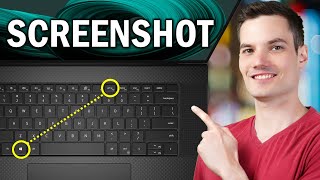
The simplest method is to press the Print Screen (often labeled PrtScn) key. This copies the entire screen to the Windows clipboard. To view or edit the image, open any graphics program—such as Paint, Word, or PowerPoint—and press Ctrl + V to paste.
Capture the Active Window Only
If you only need the window you’re working in, hold down the Alt key while pressing Print Screen. This copies just the active window to the clipboard, which you can then paste into your preferred application.
Save Directly to a File
Windows 10 and later let you bypass the clipboard entirely. Press Windows + Print Screen (or Windows + PrtScn) and the screen will dim briefly. The operating system automatically saves a PNG file in the Pictures\Screenshots folder. This is ideal for quick documentation without opening another program.
Modern Tools for Precise Snipping
Snip & Sketch (Windows + Shift + S)
In this video I show you how to use the built‑in Snip & Sketch tool. Press Windows + Shift + S to launch a small overlay that lets you choose from four snip shapes:
- Rectangular snip
- Free‑form snip
- Window snip
- Full‑screen snip
After you make a selection, the image is copied to the clipboard and a notification appears. Click the notification to open the Snip & Sketch editor, where you can annotate, crop, or save the screenshot.
Snipping Tool (Legacy)
Older versions of Windows include the Snipping Tool. To open it, type “