How to Quick Share to iPhone: A Complete Guide for Android and iOS Users
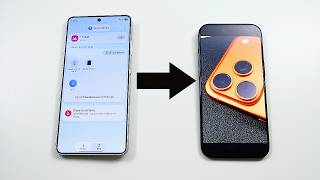
Sharing photos, videos, documents, or any other file between an Android phone and an iPhone used to require a cloud service or a computer as a middle‑man. With the recent rollout of Android 17 and iOS 26, Google’s Quick Share and Apple’s AirDrop now work together, allowing a truly wireless, cross‑platform transfer. This guide walks you through everything you need to know—setup, step‑by‑step sharing, troubleshooting, and alternative methods—so you can move data between a Samsung Galaxy S26 (or any Android 17 device) and an iPhone with confidence.
What Is Quick Share and How Does It Interact with AirDrop?
Quick Share is Google’s answer to AirDrop. It lets Android users broadcast a file over Bluetooth and Wi‑Fi Direct to any nearby device that supports the protocol. With the latest Android 17 update, Quick Share includes a “Cross‑Platform” mode that recognises iOS 26 devices running AirDrop. When both phones have Bluetooth and Wi‑Fi turned on, the two services negotiate a secure peer‑to‑peer connection, allowing files to flow in either direction without leaving the devices.
Device Requirements
- Android side: Android 17 or later, One UI 8.5 (or later) on Samsung devices such as the Galaxy S26 Ultra. The Quick Share feature is pre‑installed, but you may need to enable it in Settings → Connections → Quick Share.
- iPhone side: iOS 26 or later with AirDrop enabled (Settings → General → AirDrop). Both “Receiving Off” and “Contacts Only” options work, but “Everyone” removes the need for a mutual contact.
- Connectivity: Bluetooth 5.0+ and Wi‑Fi (both devices must be on the same Wi‑Fi network or have Wi‑Fi Direct enabled).
Preparing Your Samsung Galaxy S26 for Quick Share
- Open Settings and tap Connections.
- Select Quick Share. If you do not see it, update your device to the latest One UI 8.5 build (available via Samsung’s update page).
- Turn the toggle On and choose “Allow sharing with all devices” to make cross‑platform transfers smoother.
- Make sure Bluetooth and Wi‑Fi are active. You can verify Quick Share status in the quick‑settings panel (the icon looks like two interlocking arrows).
Enabling AirDrop on Your iPhone
- Go to Settings → General → AirDrop.
- Select Everyone for the most frictionless experience, or Contacts Only if you prefer a tighter security model.
- Swipe up (or down on newer iPhones) to open Control Center, press firmly (or long‑press) the network card, and confirm that AirDrop is active.
Step‑by‑Step: Quick Share from Samsung to iPhone
Once both devices are ready, follow these simple steps to transfer a file:
- Select the file on your Galaxy S26 (Gallery, Files, or any app with a share button).
- Tap the Share icon and choose Quick Share from the list.
- Quick Share will scan for nearby devices. Your iPhone should appear with the label “iPhone (AirDrop).” Tap it.
- A prompt appears on the iPhone: “Accept file from [Your Samsung name]?” Tap Accept.
- The transfer begins. Progress is shown on both devices. When finished, the file lands in the iPhone’s Files app (or Photos app for images and videos).
Sending from iPhone to Samsung (AirDrop → Quick Share)
The process works in reverse:
- Open the file on the iPhone (Photos, Files, etc.) and tap the Share button.
- Select AirDrop and choose the Samsung device that appears as “Galaxy S26.”
- On the Samsung, a Quick Share notification pops up asking to Accept the incoming file.
- Tap Accept**. The file is saved to the default download folder or the Gallery, depending on the file type.
Tips for a Smooth Transfer
- Keep devices close: A distance of less than 3 meters (10 feet) ensures a strong Bluetooth link.
- Disable battery‑saving modes: Power‑saving can throttle Wi‑Fi or Bluetooth, interrupting the transfer.
- Use “Everyone” on AirDrop for first‑time connections: After the initial pairing, you can switch back to “Contacts Only” for added privacy.
- Transfer size limits: While Quick Share supports files up to 2 GB, very large videos may take several minutes; a stable Wi‑Fi connection helps.
Common Issues and How to Fix Them
- Device not showing up: Restart Bluetooth on both phones, ensure Wi‑Fi is on, and verify that Quick Share and AirDrop are both set to “Everyone.”
- Transfer stalls at 0%: Turn off any VPN or firewall apps that might block peer‑to‑peer traffic.
- File appears corrupted: Make sure both devices run the latest OS versions (Android 17, iOS 26). Re‑install the file if needed.
- Receiving notification never appears on iPhone: Check that “Do Not Disturb” is off and that the iPhone’s screen is unlocked.
Alternative Ways to Move Files Between Android and iPhone
If Quick Share/AirDrop isn’t convenient, you have several reliable options:
- Cloud storage: Upload to Google Drive, Dropbox, or OneDrive from Android, then download on iPhone.
- USB‑C to Lightning cable: Use a compatible adapter (e.g., Samsung’s USB‑C to Lightning) and the Files app to copy directly.
- Third‑party apps: Apps like Send Anywhere, SHAREit, or Xender support cross‑platform transfers without a cloud.
Security and Privacy Considerations
Both Quick Share and AirDrop encrypt the data during transfer, but you should still follow best practices:
- Only enable “Everyone” when you are actively sharing; revert to “Contacts Only” or “Receiving Off” afterward.
- Avoid sharing sensitive documents in public places where strangers could intercept the Bluetooth signal.
- Keep your device software up to date; security patches are released regularly for both Android 17 and iOS 26.
Conclusion
Thanks to the collaboration between Google and Apple, moving files between a Samsung Galaxy S26 (or any Android 17 device) and an iPhone is now as easy as a tap. By enabling Quick Share on Android and AirDrop on iOS, you can instantly share photos, videos, documents, and more without a cloud service or cable. Follow the setup steps, use the simple sharing workflow, and keep the troubleshooting tips handy for a seamless experience. Stay updated with the latest One UI 8.5 patches and iOS 26 releases, and you’ll enjoy fast, secure, and truly cross‑platform file transfers every day.
- Learn more: Visit Samsung’s official update page (Galaxy S26 Ultra) for the newest One UI builds.
- Buy the latest hardware: If you’re ready for the next‑gen experience, check out the Galaxy S26 Ultra today.
- Stay informed: Follow Google’s announcements on Android and Apple’s release notes for iOS to keep your devices compatible.



![AirDrop launches on Android and iPhone [Introducing how to convert HEIF to JPEG] [Quick Share]](https://i.ytimg.com/vi/-Sv3G2dgJNQ/mqdefault.jpg)