How To Screenshot In A Windows PC: A Complete Guide
Whether you need to capture a software bug, save a receipt, or simply share a funny moment, taking screenshots in Windows is a skill every computer user should master. Windows offers several built‑in options, and third‑party tools can add extra flexibility. This article walks you through the most reliable methods, step by step, so you can choose the one that fits your workflow.
Built‑In Screenshot Methods
Windows 10 and Windows 11 include four native ways to capture the screen. All of them work without installing additional software.
1. Print Screen (PrtSc) Keys
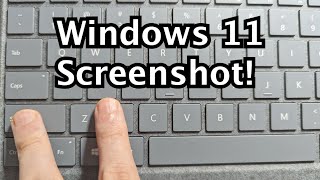
- Locate the PrtSc key on your keyboard. It may be labeled Print Screen, PrtScn, or PrtSc.
- Press PrtSc once to copy the entire screen to the clipboard.
- Open Paint, Word, or any image editor, and press Ctrl + V to paste the screenshot.
- Save the file in your preferred format (PNG, JPEG, etc.).
This method is quick, but it requires an extra step to save the image.
2. Windows + PrtSc
- Press Windows + PrtSc simultaneously.
- The screen will dim briefly, indicating that Windows has captured the image.
- Find the screenshot automatically saved in Pictures → Screenshots.
This shortcut saves the image directly to a folder, eliminating the need to paste manually.
3. Windows + Shift + S (Snip & Sketch)
- Press Windows + Shift + S. A translucent overlay appears with four capture options: rectangular, freeform, window, and full‑screen.
- Select the desired mode and drag to define the capture area.
- The screenshot is copied to the clipboard and a notification appears. Click the notification to open the Snip & Sketch editor for annotations.
- Save or share the image directly from the editor.
This tool is ideal for precise selections and quick markup.
4. Xbox Game Bar (Windows + G)
- Press Windows + G to open the Xbox Game Bar overlay.
- Click the camera icon or press Windows + Alt + PrtSc to capture the current window.
- Find the screenshot in Videos → Captures by default.
The Game Bar is especially useful for