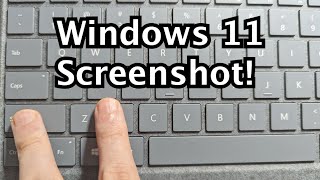
How To Screenshot In Game Windows 11: A Complete Guide
Capturing a moment in a game can be as important as the gameplay itself. Whether you want to share a victory, document a bug, or create content for social media, Windows 11 offers several reliable ways to take screenshots without leaving the game. This article walks you through each method, highlights the best practices, and shows how to troubleshoot common problems.
Why Choose Windows 11 for Gaming Screenshots?
Windows 11 builds on the familiar Snipping Tool and introduces the Xbox Game Bar as a dedicated overlay for gamers. Both tools work in full‑screen, borderless window, and windowed modes, so you never have to pause or exit the game to capture the perfect frame.
Method 1: Using the Xbox Game Bar
The Xbox Game Bar is pre‑installed on Windows 11 and is the quickest way to screenshot while you play.
- Open the Game Bar: Press Win + G. The overlay appears at the top of the screen.
- Locate the Capture widget: If it’s not visible, click the widget menu (the small square icon) and select “Capture.”
- Take a screenshot: Click the camera icon or press Win + Alt + PrtScn. The image is saved automatically to C:\Users\YourName\Videos\Captures.
- Review and edit: Hover over the notification that appears after the shot to open the file directly or use the “Gallery” button in the Game Bar to see all captures.
The Game Bar also lets you record short clips (up to 30 seconds by default) and add microphone audio, making it a versatile tool for content creators.
Method 2: Using the Classic Print Screen Shortcut
If you prefer the traditional approach, Windows 11 still supports the Print Screen key.
- Full‑screen capture: Press PrtScn. The screenshot is copied to the clipboard, and a notification prompts you to save it with Snip & Sketch.
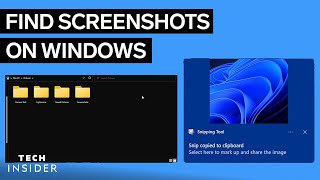
- Direct file save: Press Win + PrtScn. The screen dims briefly, and the image is saved to the Pictures\Screenshots folder.
- Active window only: Press Alt + PrtScn. The selected window is copied to the clipboard for pasting into an image editor.
These shortcuts work in most games, but some full‑screen titles may block the key. In that case, switch to windowed mode or use the Game Bar.
Method 3: Snipping Tool (formerly Snip & Sketch)
The Snipping Tool offers more control over the capture area.
- Press Win + Shift + S to launch the snip toolbar.
- Select a mode: