Mastering the Screenshot in Modern Windows
Capturing your screen is an essential skill for work, tutorials, or saving memories of your digital life. With the latest versions of Windows, Microsoft has streamlined and expanded the ways you can take a screenshot, moving beyond the simple Print Screen key of the past. This guide walks you through the most effective methods, from built-in shortcuts to dedicated tools, ensuring you can grab any part of your screen quickly and efficiently.
Keyboard Shortcuts: The Fastest Routes
Keyboard shortcuts remain the most immediate way to take screenshots. Windows offers several combinations to capture the entire screen, a single window, or a selected area, each saving the image to a different location.
Capture the Entire Screen
- Print Screen (PrtScn): Pressing PrtScn copies the entire screen to your clipboard. You can then paste it (Ctrl + V) into an image editor like Paint or a document. It is not automatically saved as a file.
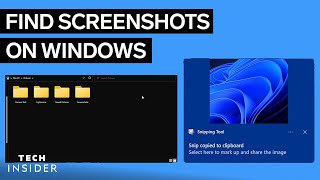
- Windows Key + Print Screen: This combination instantly captures the entire screen and saves it as a PNG file directly to your device. The screen will dim briefly to confirm the capture. The image is stored in the Screenshots folder, located at This PC > Pictures > Screenshots.
- Alt + Print Screen: Use this to capture only the currently active window. The image is copied to your clipboard, ready to be pasted into another application.