How To Screenshot In Windows and macOS: A Complete Guide
Capturing a screenshot is one of the most useful tricks for both Windows and Mac users. Whether you need to document an error, share a design mock‑up, or simply save a memorable moment from a video, the built‑in tools are fast, free, and require no extra software. This article walks you through the essential keyboard shortcuts and step‑by‑step methods to take a full‑screen shot, a specific window, or a custom portion of your screen on both platforms.
Why Use Native Screenshot Tools?
Native tools are always up to date, work offline, and avoid the quality loss that can happen when you photograph your screen with a phone camera. They also integrate directly with the operating system’s clipboard and file‑saving mechanisms, letting you paste images instantly into documents or email.
Screenshot Basics in Windows
Full‑Screen Capture
Press Print Screen (PrtScn) to copy the entire screen to the clipboard. Open an image editor such as Paint, press Ctrl + V, and then save the file.
Saving Directly to a File
If you prefer a one‑step process, press Windows + Print Screen. The screen will dim briefly, confirming the capture, and the image is saved automatically to Pictures → Screenshots.
Capture a Single Window
First, select the window you want to capture. Then press Alt + Print Screen. The active window is copied to the clipboard, ready to be pasted into any application.
Custom Area Capture
Windows 10 and later include the Snip & Sketch tool. Press Windows + Shift + S to open the snipping toolbar, then choose one of these modes:
- Rectangular snip – drag to define a rectangle.
- Freeform snip – draw an irregular shape.
- Window snip – click a window to capture it.
- Full‑screen snip – captures the entire display.
After you select an area, the screenshot is placed on the clipboard and a notification appears, allowing you to edit or save the image.
Screenshot Basics in macOS
Full‑Screen Capture
Press Command + Shift + 3. The screenshot is saved directly to your desktop and also copied to the clipboard if you hold the Control key while pressing the shortcut.
Capture a Selected Portion
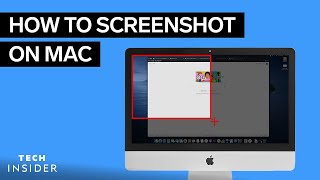
Press Command + Shift + 4. Your cursor turns into a crosshair; drag to select the desired area, then release the mouse button. The image is saved to the desktop by default.
Capture a Specific Window
Press Command + Shift + 4, then tap the