How To Screenshot In Windows On Laptop: A Complete Guide
Taking a screenshot on a Windows laptop is a basic skill that can boost your productivity, help you document errors, or simply capture a memorable moment on screen. In this step‑by‑step tutorial, learn how to take screenshots using built‑in Windows tools and a few popular alternatives. Whether you prefer keyboard shortcuts or a visual interface, this guide covers every method you need.
Why Knowing Multiple Methods Matters
We could spend all day arguing the merits of a good screenshot workflow, but the truth is that different tasks require different approaches. A quick Print Screen press works for full‑screen grabs, while the Snip & Sketch app offers precise region selection. Understanding each option ensures you capture exactly what you need, every time.
Method 1: Using the Print Screen (PrtSc) Key
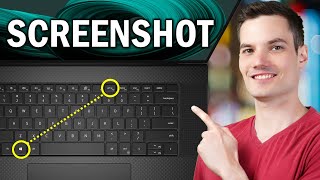
- Locate the PrtSc key on your laptop keyboard. It is usually found in the upper‑right corner.
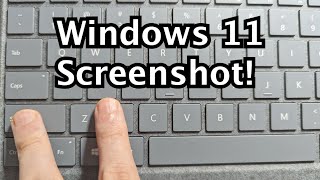
- Press PrtSc once to copy the entire screen to the clipboard.
- Open Paint or any image editor, press Ctrl + V, and paste the screenshot.
- Save the file in your preferred format (PNG, JPEG, etc.).
If you want the screenshot saved automatically without opening an editor, press Windows + PrtSc. The screen will dim briefly, and the image will be stored in Pictures → Screenshots.
Method 2: Snipping Tool (Legacy)
The classic Snipping Tool is still available on many Windows 10 laptops. It provides four snip modes: free‑form, rectangular, window, and full‑screen.
- Search for “Snipping Tool” in the Start menu and launch the app.
- Click the New button and choose a snip mode.
- Drag the cursor to select the area you want to capture.
- Use the toolbar to annotate, copy, or save the screenshot.
Method 3: Snip & Sketch (Windows 10/11)
Snip & Sketch replaces the legacy tool with a more modern interface and quick‑access shortcuts.
- Press Windows + Shift + S. The screen will dim and a small toolbar appears at the top.
- Select Rectangular Snip, Freeform Snip, Window Snip, or Fullscreen Snip.
- After making your selection, the screenshot is copied to the clipboard and a notification appears.
- Click the notification to open the