How to Screenshot in Windows Without Using the Print Screen Key
Many Windows users rely on the Print Screen (PrtScn) key to capture their screen, but not everyone has a keyboard that includes this key. Whether you need to capture the entire desktop or just a portion of it, Windows offers several built‑in tools and keyboard shortcuts that work without the PrtScn button. This guide explains four reliable methods you can use right now.
Why You Might Want to Avoid the Print Screen Key
There are a few common reasons people look for alternatives to the traditional Print Screen approach:
- Some modern laptops hide the PrtScn function behind a secondary key or replace it with a different label.
- Keyboard layouts for certain regions do not include a dedicated Print Screen key.
- Using a shortcut that directly saves the image can be faster than copying to the clipboard and pasting into an editor.
Understanding these scenarios helps you choose the method that fits your workflow best.
Method 1: Use the Windows + Shift + S Shortcut
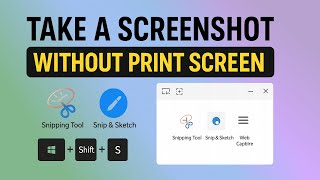
Windows 10 and Windows 11 include a powerful screen‑capture utility called Snip & Sketch (or Snipping Tool in newer builds). The shortcut Windows + Shift + S activates the tool instantly.
How It Works
- Press Windows + Shift + S simultaneously.
- The screen dims slightly, and a small toolbar appears at the top.
- Select one of the four capture modes:
- Rectangular snip – drag to define a rectangle.
- Freeform snip – draw an irregular shape.
- Window snip – click a window to capture it.
- Full‑screen snip – capture the entire screen.
- The screenshot is copied to the clipboard and a notification appears.
- Click the notification to open the image in Snip & Sketch, where you can annotate, save, or share it.
This method works without any additional software and lets you capture exactly what you need.
Method 2: Capture Directly with the Windows + Print Screen Shortcut
If you prefer a one‑step solution that saves the screenshot automatically, use the Windows + Print Screen combination. Even though it includes the Print Screen concept, it does not require a dedicated PrtScn key.
Steps to Follow
- Press Windows + Print Screen together.
- The screen flashes briefly, indicating that the capture was taken.
- Windows saves the image as a PNG file in Pictures \ Screenshots.
- Open the folder to view, edit, or share the screenshot.

![How to Print Screen Without Printscreen Button [Guide]](https://i.ytimg.com/vi/IRJ8iroFr40/mqdefault.jpg)