How To Screenshot On Mac: A Complete Guide
Taking a screenshot on a Mac is quick, versatile, and doesn’t require any third‑party software. Whether you need to capture the entire desktop, a single window, or a precise portion of the screen, macOS provides built‑in shortcuts and tools that work consistently across all recent versions. This guide walks you through every method, from the classic keyboard commands to the newer Screenshot app, so you can choose the workflow that best fits your needs.
Why Use Built‑In Screenshot Tools?
Built‑in screenshot utilities are fast, reliable, and integrated with macOS’s file‑management system. They avoid the quality loss that can occur when you point a phone camera at the screen, a mistake highlighted in tutorials such as the video “How to take screenshots on your …” and the article on macmost.com (https://macmost.com/e-3076). Using the native tools also gives you immediate access to editing features like markup, cropping, and annotation.
Keyboard Shortcuts for Every Situation
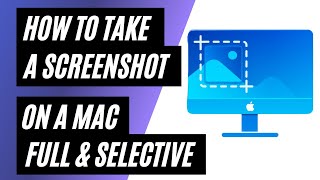
The fastest way to capture anything on a Mac is with a keyboard shortcut. Below are the three core commands, each followed by a short description of what it captures:
- Capture the Entire Screen
Shortcut: Shift + Command + 3
Pressing this combination instantly saves a picture of everything visible on your display. The file appears on your Desktop by default, unless you have changed the save location in the Screenshot app’s options. - Capture a Selected Portion
Shortcut: Shift + Command + 4
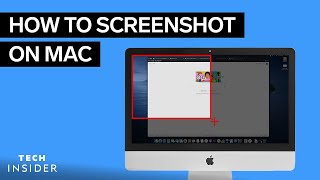
After you press the keys, the cursor turns into a crosshair. Click and drag to draw a rectangle around the area you want. Release the mouse or trackpad button to take the screenshot. Holding Space while dragging lets you reposition the selection. - Capture a Specific Window
Shortcut: Shift + Command + 4**, then** Space
Press the first part of the shortcut to enter selection mode, then press the Space bar. The cursor changes to a camera icon. Hover over any open window, and the window will be highlighted. Click to capture only that window, complete with its shadow.
Using the Screenshot App (macOS Mojave and Later)
Starting with macOS Mojave, Apple introduced a dedicated Screenshot app that offers a visual interface and additional options.