How To Screenshot Windows Browser
Whether you’re capturing a bug, saving a design reference, or documenting a web tutorial, knowing how to screenshot a browser on Windows is a skill that saves time and keeps your workflow smooth. This guide walks you through the most common methods, from a quick screen grab to a full‑page capture, and shows you how to store and manage your screenshots efficiently.
Why Screenshots Matter in Web Workflows
Browsers display dynamic content that can change or disappear between visits. A screenshot preserves exactly what you see at a given moment, making it easy to share, compare, or archive. It also helps developers debug layout issues, marketers track landing page performance, and designers keep visual records of client feedback.
Quick Methods for Standard Screenshots
Windows offers several built‑in shortcuts that capture either the active window or the entire screen. These are perfect for quick, one‑time captures that you can paste into documents or emails.
- Print Screen (PrtScn) – Captures the whole screen and copies it to the clipboard. Paste it into an image editor or Word document.
- Alt + Print Screen – Captures only the active window (your browser tab). Paste directly into an editor.
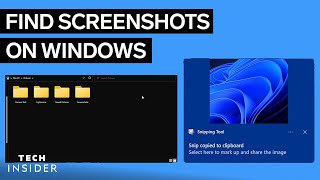
- Win + Shift + S – Opens the Snip & Sketch tool. Drag to select a region; the image is copied to the clipboard and a notification appears for quick sharing.
These methods are ideal for small screenshots, such as a single button or a short error message.
Capturing Full Browser Pages
Standard shortcuts can’t capture content that extends beyond the visible viewport. For a complete page image, use either the browser’s built‑in tools or a dedicated extension.
Google Chrome- Open the page you want to capture.
- Right‑click anywhere on the page and select Inspect or press Ctrl + Shift + I.
- Click the three‑dot menu in the top right of DevTools, choose Run command (or press Ctrl + Shift + P).
- Type “screenshot” and select Capture full-size screenshot.
- The image is automatically downloaded to your default Downloads folder.
- Open the page.
- Click the ... More button, then choose