How To Uninstall App In Windows: A Step‑by‑Step Guide
If you’re having trouble with a program that slows down your PC, takes up storage, or simply no longer serves a purpose, learning how to uninstall an app in Windows is essential. This article walks you through the most common methods, from the Settings menu to the classic Control Panel, and offers tips for removing stubborn software.
Why Uninstalling Apps Matters
Keeping your system clean has several benefits:
- Better performance: Fewer background processes mean faster boot times.
- More storage space: Removing unused programs frees up gigabytes for files and media.
- Improved security: Outdated or rarely used apps can become entry points for malware.
Method 1: Uninstall Through Windows Settings
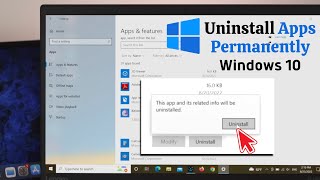
The Settings app is the most straightforward place to learn how to uninstall apps on Windows 10 and Windows 11.
Step‑by‑step process
- Press Windows + I to open Settings.
- Click Apps on the left sidebar.
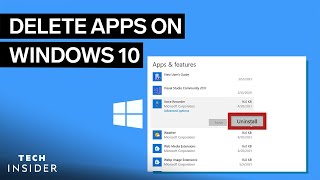
- Select Apps & features. A list of installed programs appears.
- Scroll or use the search box to find the app you want to remove.
- Click the three‑dot menu next to the app and choose Uninstall.
- Follow any on‑screen prompts from the app’s own uninstall wizard.
If the Uninstall button is greyed out, the app may be a built‑in Windows component that cannot be removed via Settings.
Method 2: Using the Classic Control Panel
Many users still prefer the familiar Control Panel, especially for older programs that don’t appear in the Settings list.
Steps to remove apps via Control Panel
- Press Windows + R, type appwiz.cpl, and press Enter.
- The Programs and Features window opens, showing all installed software.
- Select the program you wish to delete.
- Click Uninstall at the top of the list.
- Confirm any additional prompts and let the program’s uninstaller run.
After the process finishes, it’s a good idea to restart your computer to ensure all changes take effect.
Method 3: Using the App’s Built‑In Uninstaller
Some applications include a dedicated uninstaller that can be accessed from the Start menu or the program’s folder.
How to locate and run a built‑in uninstaller
- Open the Start menu and type the name of the app.
- If an entry such as “App Name Uninstaller” appears, click it.
- Follow the prompts to complete the removal.