Telegram App Auto Download Off: Complete Guide to Disable Automatic Media Downloads
Telegram is a fast, secure messaging platform that lets you share photos, videos, documents, and voice messages with ease. However, the default setting automatically downloads media, which can quickly consume mobile data and storage. If you want to stop Telegram from automatically downloading photos, videos, and other files, this guide shows you exactly how to turn the feature off on Android, iOS, and desktop.
Why Turn Off Auto‑Download?
- Save mobile data – Automatic downloads can drain your data plan, especially when you are on a limited network.
- Free up device storage – Large video files and high‑resolution images fill up your phone’s memory fast.
- Control privacy – Prevent unwanted media from appearing in your gallery without your consent.
How to Turn Auto‑Download Off on Android
Follow these simple steps to stop Telegram from automatically downloading media on your Android device.
- Open the Telegram app and tap the three‑line menu (☰) in the top left corner.
- Select Settings from the sidebar.
- Tap Data and Storage.
- Under the Automatic media download section, you will see three categories: When using mobile data, When connected on Wi‑Fi, and When roaming.
- For each category, uncheck the boxes for Photos, Videos, Files, and Music that you do not want to download automatically.
- Optionally, enable the Save to Gallery toggle only for the media you manually save.
- Close the settings – your changes are saved instantly.
How to Turn Auto‑Download Off on iOS
The process on iPhone and iPad is very similar.
- Launch Telegram and go to Settings (gear icon) at the bottom right.
- Tap Data and Storage.
- Locate the Automatic media download section.
- Tap each option – Mobile Data, Wi‑Fi, and Roaming – and toggle off the media types you wish to block.
- Return to the main Settings screen; the app stores your preferences automatically.
How to Turn Auto‑Download Off on Desktop (Windows, macOS, Linux)
Desktop versions of Telegram also support manual control over media downloads.
- Open Telegram and click the three‑dot menu in the top left corner.
- Select Settings > Advanced > Automatic media download.
- Choose the network type (Wi‑Fi, Mobile, or Roaming) and uncheck the media categories you do not want to download.
- Close the window – the settings are applied immediately.
In This Video, You’ll Learn How to Stop Automatic Downloads
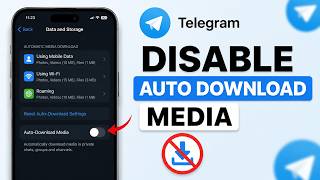
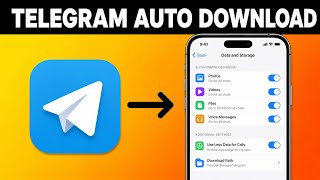
If you prefer visual instructions, there are many short tutorials available. In the video you will see a step‑by‑step walkthrough of the Android and iOS settings screens. The narrator says, “Want to stop Telegram from automatically downloading photos, videos, and other files? In this video, you’ll learn how to disable each option and keep your data safe.” Watching the video can help you confirm that you are in the right menu and that each toggle is correctly set.
Additional Tips to Keep Telegram Light and Fast
- Clear cached files regularly via Settings > Data and Storage > Storage Usage > Clear Cache.
- Use the “Save to Gallery” option only for specific chats where you want media to appear in your phone’s gallery.
- Set a download limit for videos (e.g., only download videos under 10 MB) if you still want some automatic downloads.
- Enable “Ask before downloading” for large files, which prompts you each time a big video is received.
How to Turn Back On Auto‑Download (If Needed)
Should you ever need to re‑enable automatic downloads, simply repeat the steps above and check the boxes for the media types you want to receive automatically. Telegram remembers your last configuration, so you can switch back and forth without losing any other preferences.
Common Questions About Telegram Auto‑Download
Q: Does turning off auto‑download affect message delivery?
A: No. Text messages are always delivered instantly. Only media files are affected.
Q: Will my contacts notice that I have disabled auto‑download?
A: No. The setting is private to your device and does not affect how others send media.
Q: Can I set different rules for individual chats?
A: Yes. Open a chat, tap the chat name, choose Media, and toggle Auto‑download media for that specific conversation.
Conclusion
Turning the Telegram App Auto Download Off is a quick way to protect your data plan, free up storage, and maintain control over what appears in your gallery. By following the steps outlined for Android, iOS, and desktop, you can customize the app to suit your needs without sacrificing any core functionality. Remember, you can always revisit the settings to fine‑tune your preferences or enable auto‑download again when you’re on a trusted Wi‑Fi network.





![How to Stop Telegram from Auto Downloading Media [2026 Full Guide]](https://i.ytimg.com/vi/9GRInuOB3qA/mqdefault.jpg)